📍Schedule Filter on Mobile
Last updated November 4, 2025
If you have access to multiple locations, you can now filter your schedule by area to view only the audits relevant to a specific site or region.
How It Works
The new Area Filter in the mobile app allows you to focus on one location or region at a time. This helps when you work across several sites — for example, rotating between programs or visiting multiple facilities in a week. By selecting a specific area, your schedule will show only the audits for that location.
How to Use the Area Filter
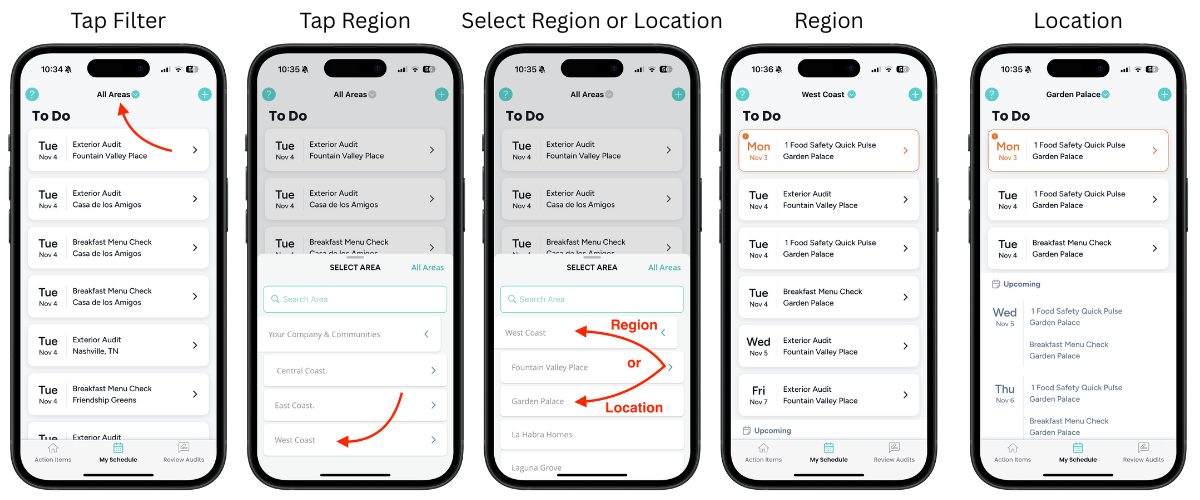
- Open the MyFieldAudits mobile app and go to the My Schedule tab. You’ll see your upcoming audits for all areas you have access to.
- Tap the area dropdown at the top of your screen (for example, “All Areas” or “West Coast”). This opens the Select Area menu.
- Search or scroll to find your desired area or location.
- Tap a region (like West Coast or Central Coast) to expand its list of locations. Then tap a specific location (for example, Garden Palace or Fountain Valley Place) to view audits for that site. You can also tap the region name itself to view all audits within that region.
- Your schedule will instantly update to show only audits assigned to that area or location. The dropdown label will also update to show your current selection.
- To return to all locations, open the dropdown again and tap All Areas.
Example
- When “All Areas” is selected, your schedule displays audits from all locations you have access to.
- When “Garden Palace” is selected, your schedule only shows audits from Garden Palace.
Was this article helpful?