
Action Items
Last updated September 27, 2026
What Are Action Items?
Action Items are created when a question is marked Thumbs Down during an audit or inspection. They flag something that needs follow-up so issues get corrected and tracked to closure — not lost in a completed report.
The lifecycle in three steps:
- Thumbs Down — a question fails during an inspection
- Assign — the issue is routed to whoever should fix it
- Review & Correct — the assignee resolves it and closes it out
Creating an Action Item
You can only create an Action Item for a question marked Thumbs Down — the option appears automatically once you do.
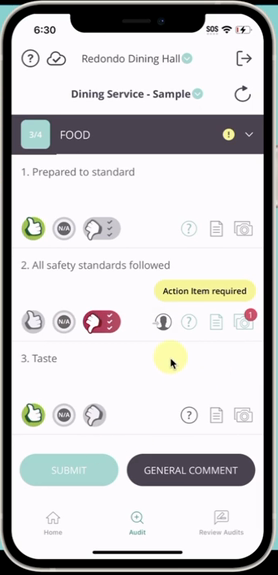
- Tap the 👤 icon next to the failed question.
- (Optional) Set a due date.
- (Optional) Assign it to anyone with access to that location or region.
- (Optional) Turn on Requires Approval if you want to review the fix yourself before it's closed.
- Tap Save.
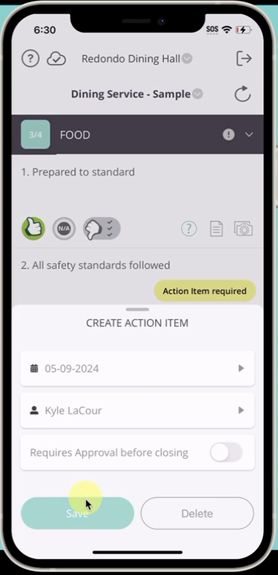
📌 Note: Some questions require an Action Item before you can submit your inspection. If one's required, you can't submit without creating it — but you can still edit the due date, assignee, or other details afterward.
What Happens Next
Once saved, the assignee gets notified two ways:
- 📱 Push notification on their device
The notification includes all the details, comments, and photos captured during the inspection, so they have full context without digging back through the report.
Resolving an Action Item
📱 On Mobile: Tap Home to see all open Action Items for your current location.
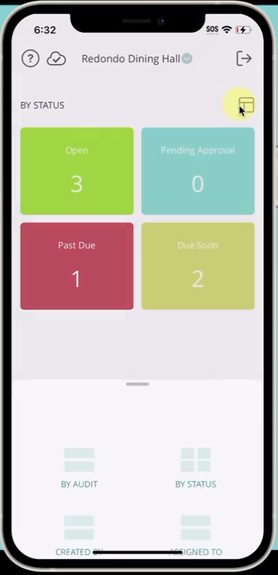
- Not seeing what you expect? Action Items follow whatever location is currently selected — check your site filter.
- Switch the view between By Status or By Assigned To using the layout icon, top right.
- A yellow dot on an item means it has an update you haven't seen yet.
🖥️ On Desktop: Log in at myfieldaudits.com (Chrome or Edge recommended) and click Action Items in the main menu.
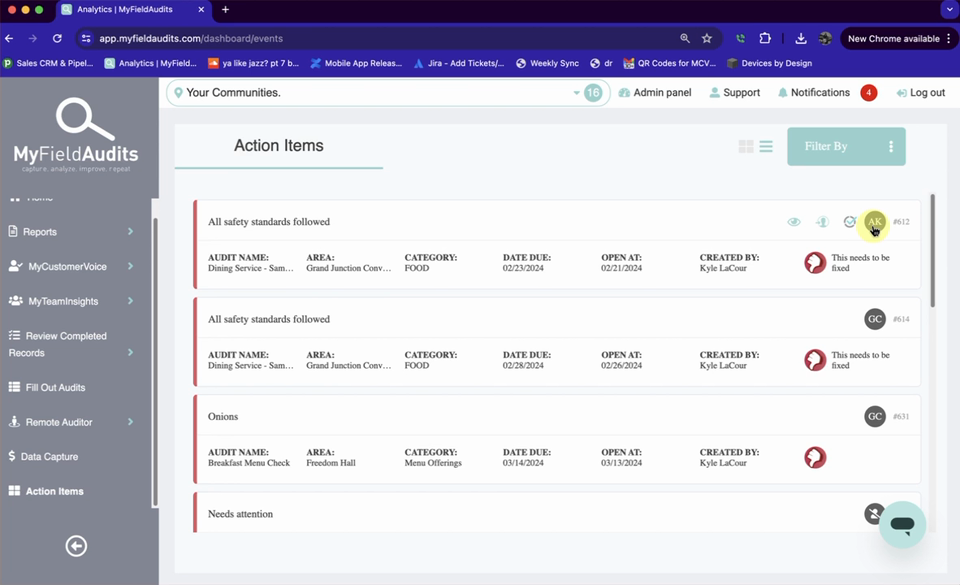
Color coding shows what's urgent at a glance: 🔴 Past due 🟡 Due soon 🟢 Open
Once you find the item:
| Action | How |
| View full details | Click the 👁️🗨️ icon |
| Add a comment | Type in the comment field |
| Attach a photo or video | Use the camera/upload icon |
| Change the due date or assignee | Click Edit |
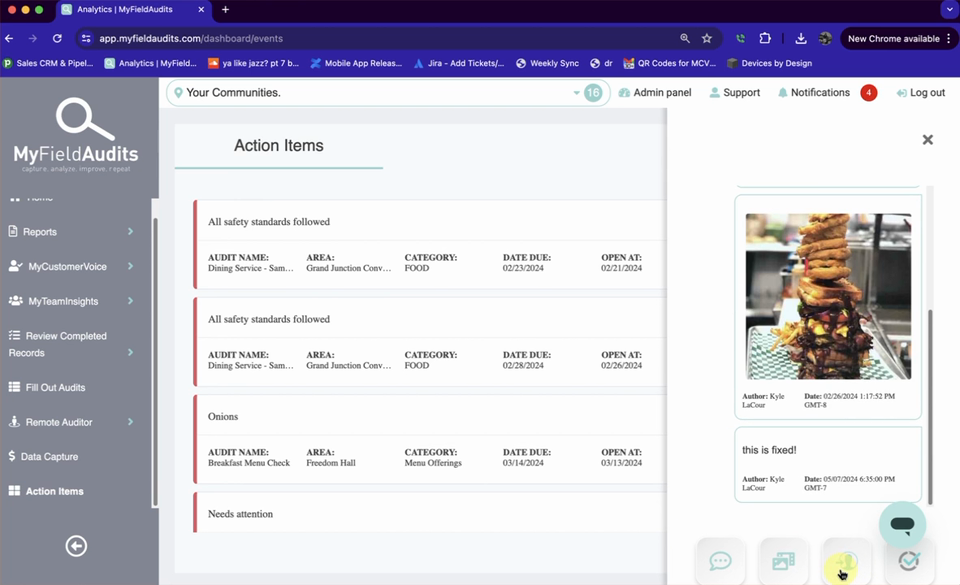
Closing Action Items
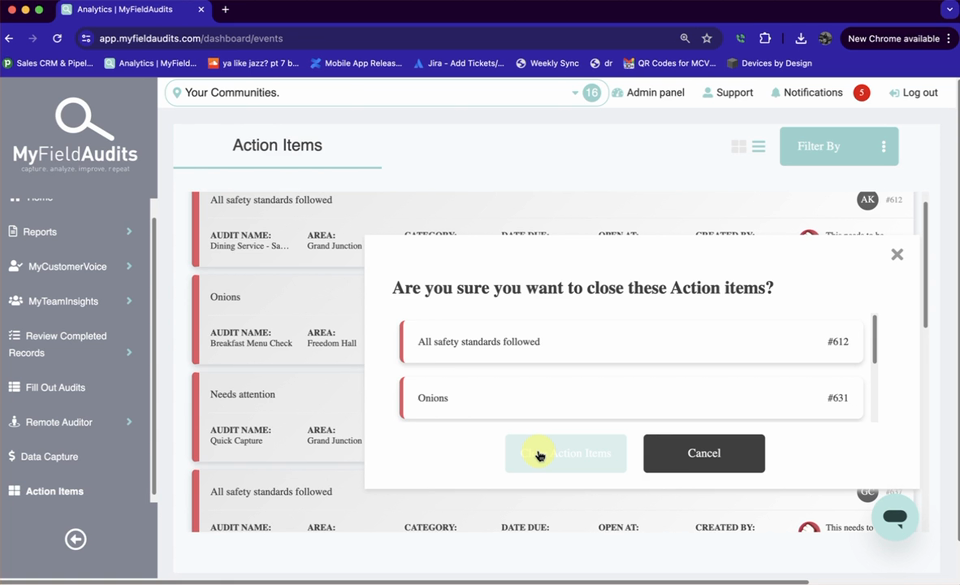
Once the issue is fixed, click the ✓ icon to close it out.
📌 If the item requires approval: Only the person who created the Action Item can close it. If you're the assignee and can't close it yourself, check the "Created By" field and confirm with them that it's approved.
💡 Tip: Add a note or photo of the fix before closing — it's a clear record the issue was actually corrected, not just marked done.
💡 Handling several at once? On desktop, select multiple Action Items and drag them into the close bin to bulk-close them.