

❗How to Close/Manage Action Items
Last updated March 20, 2026
How to Manage and Close Action Items in MyFieldAudits
Action Items help teams track issues, document progress, and confirm when work has been completed. You can review, update, and close Action Items from both mobile and web.
On Mobile
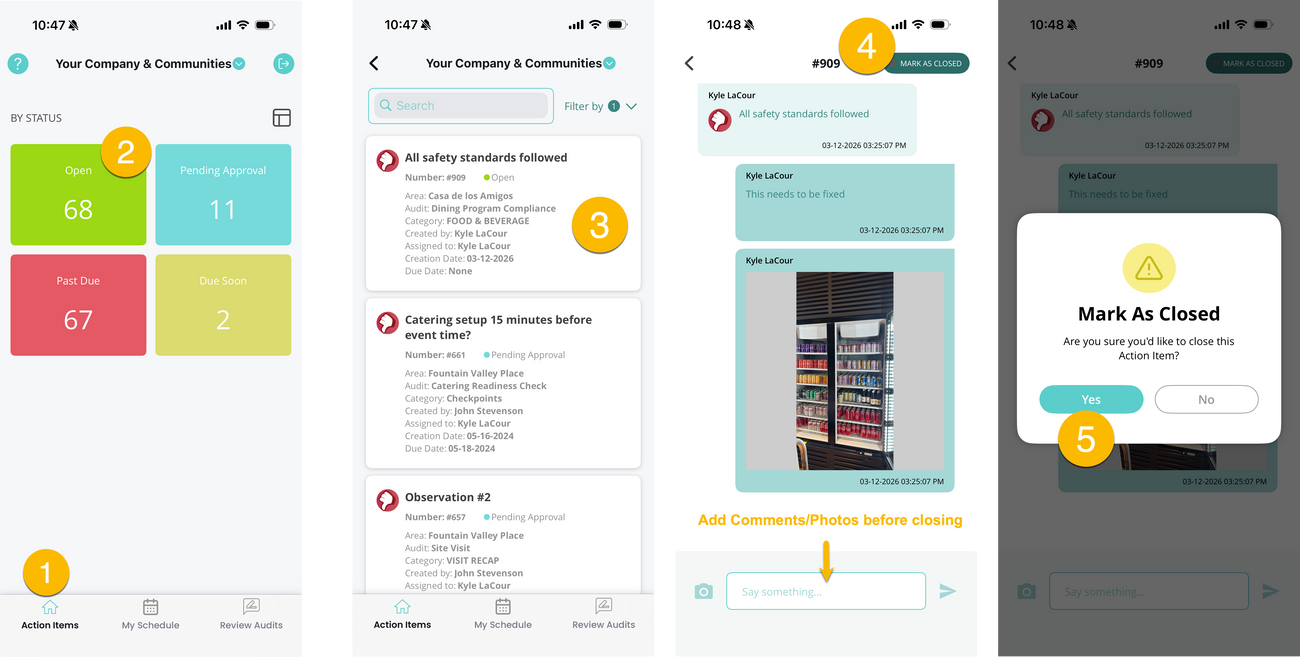
- Open MyFieldAudits.
- Tap the Action Items tab.
- Change views as needed to find the Action Item you want to manage.
- This will take you to your Action Item list.
- Tap the Action Item to open its details.
- Add a comment and/or photo to document progress or resolution.
- Tap Mark as Closed to complete the Action Item.
On Web
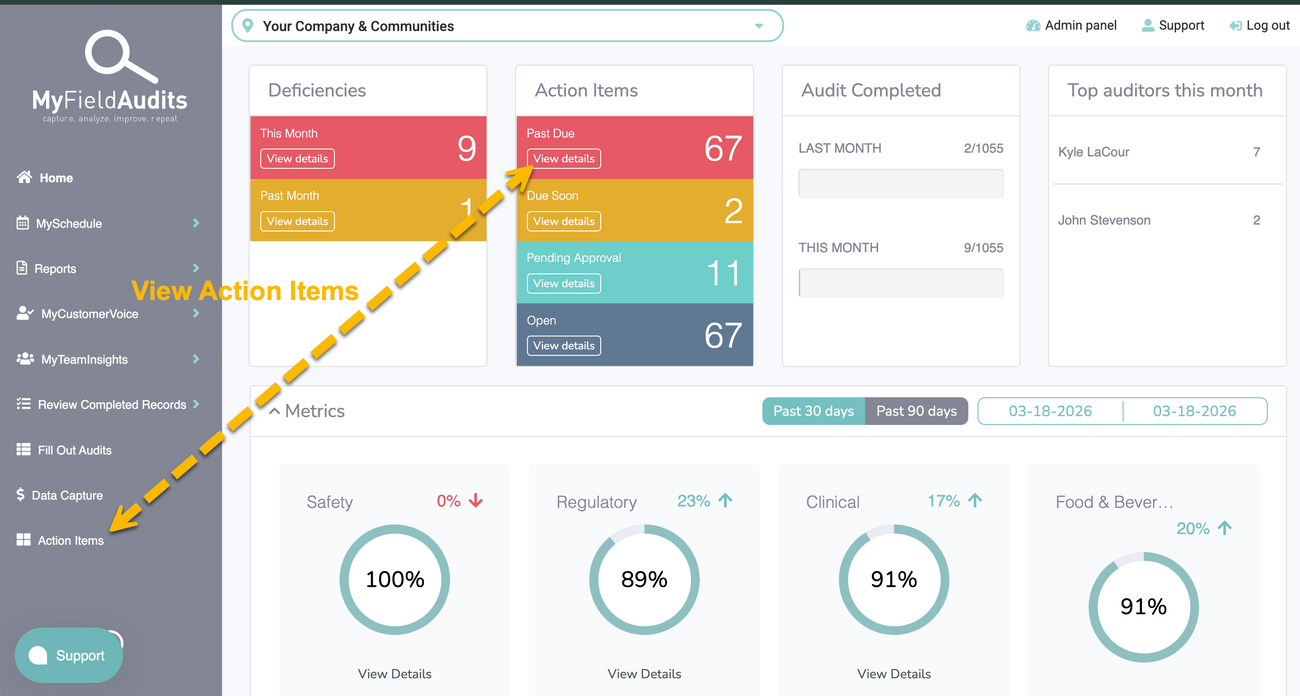
- Open MyFieldAudits on the web.
- Click the Action Items tile or select Action Items from the left-side menu.
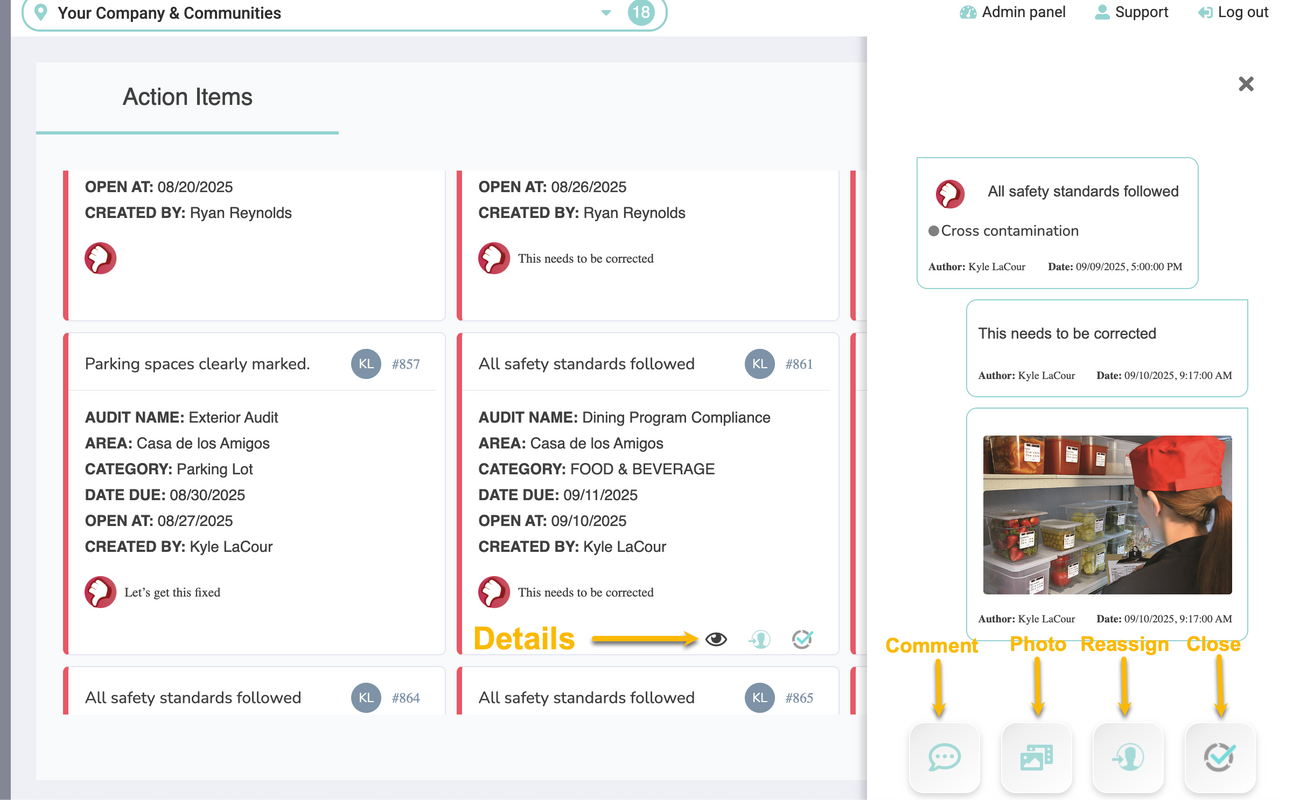
- Find the Action Item you want to manage.
- Click the eye icon to open the Action Item details.
- Add comments and/or photos to provide updates or proof of completion.
- Tap the checkmark to close the Action Item.
Approval Required & Pending Approval Action Items
- When an Action Item is created, it can be marked as Approval Required
- This gives the person who creates the Action Item an opportunity to review the correction before the Action Item is closed
- Only the user who create the Action Item can close it
- When the assignee marks the item as closed, the user who created it will be notified and can mark the item as Approved and Close
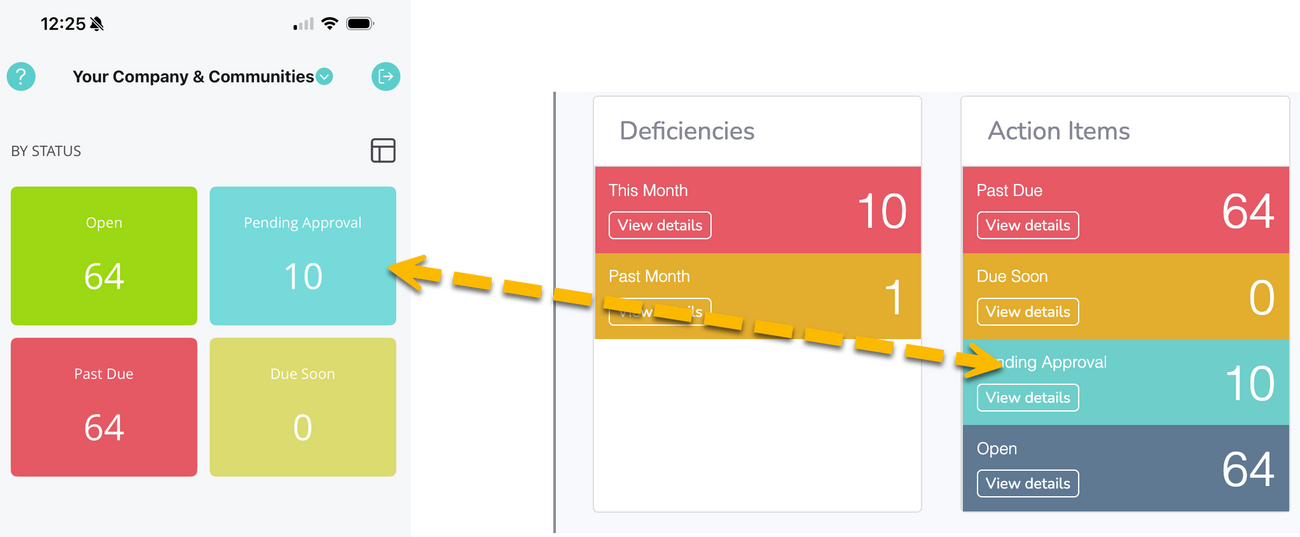
These can be found under the "Pending Approval" action item filter on Mobile and Web.
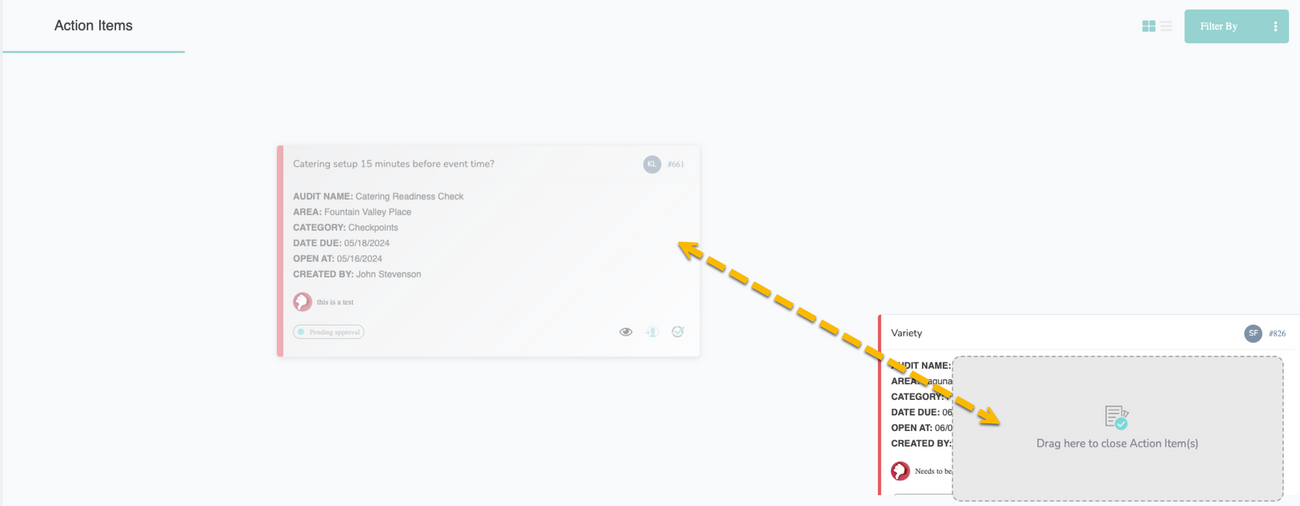
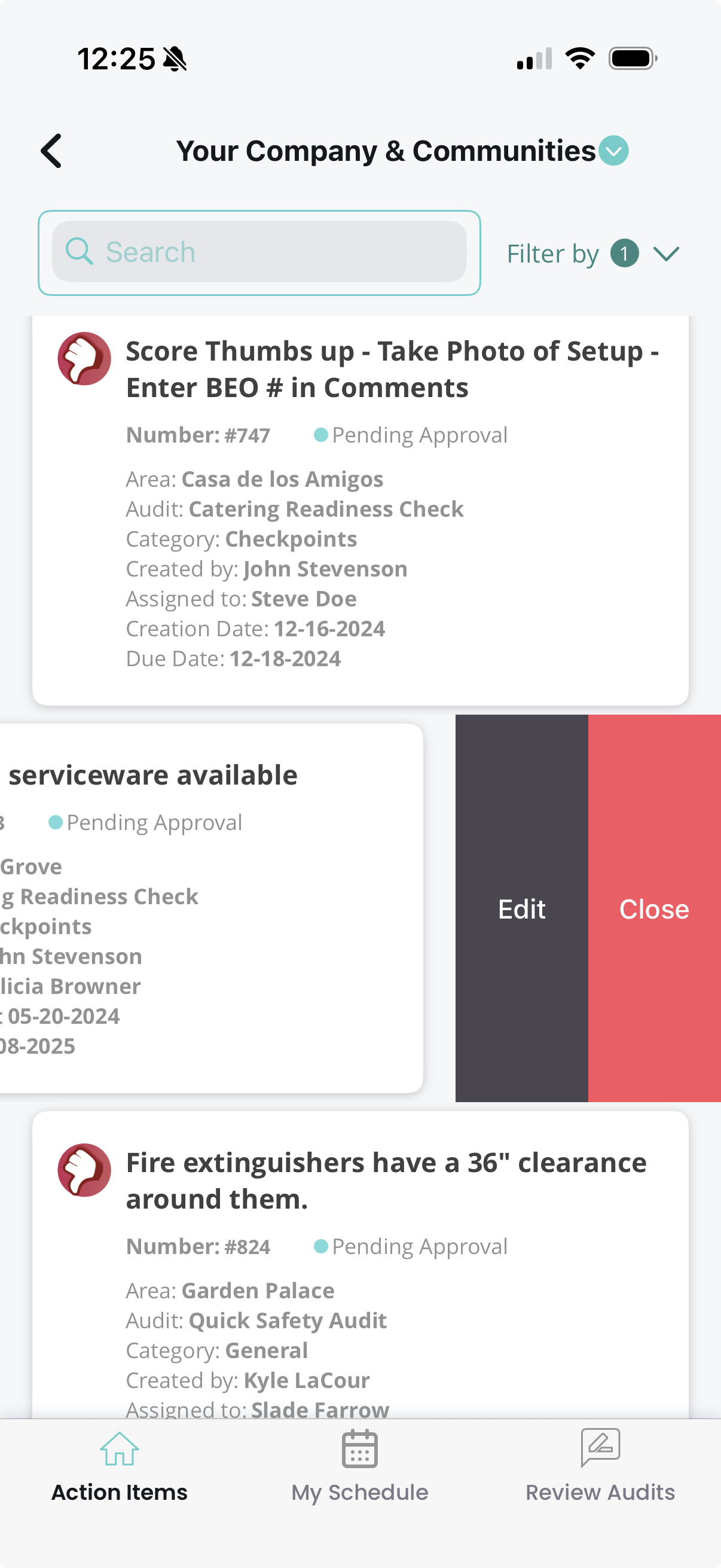
Quick & Bulk Closing Action Items
On mobile, you can slide individual action items to the left for a Quick Close option.
On web, click action items so they're highlighted, and then drag to the bottom right corner and Drop
Best Practices
- Add a comment before closing an Action Item so there is clear documentation of what was completed.
- Upload a photo when helpful to show proof of correction.
- Review open Action Items regularly to keep issues from aging.
Was this article helpful?