
📤 How to Export Audit Data
Last updated August 28, 2025
This guide walks you through how to export audit data from the Admin Panel in MyFieldAudits. You can export both detailed and high-level data depending on your reporting needs.
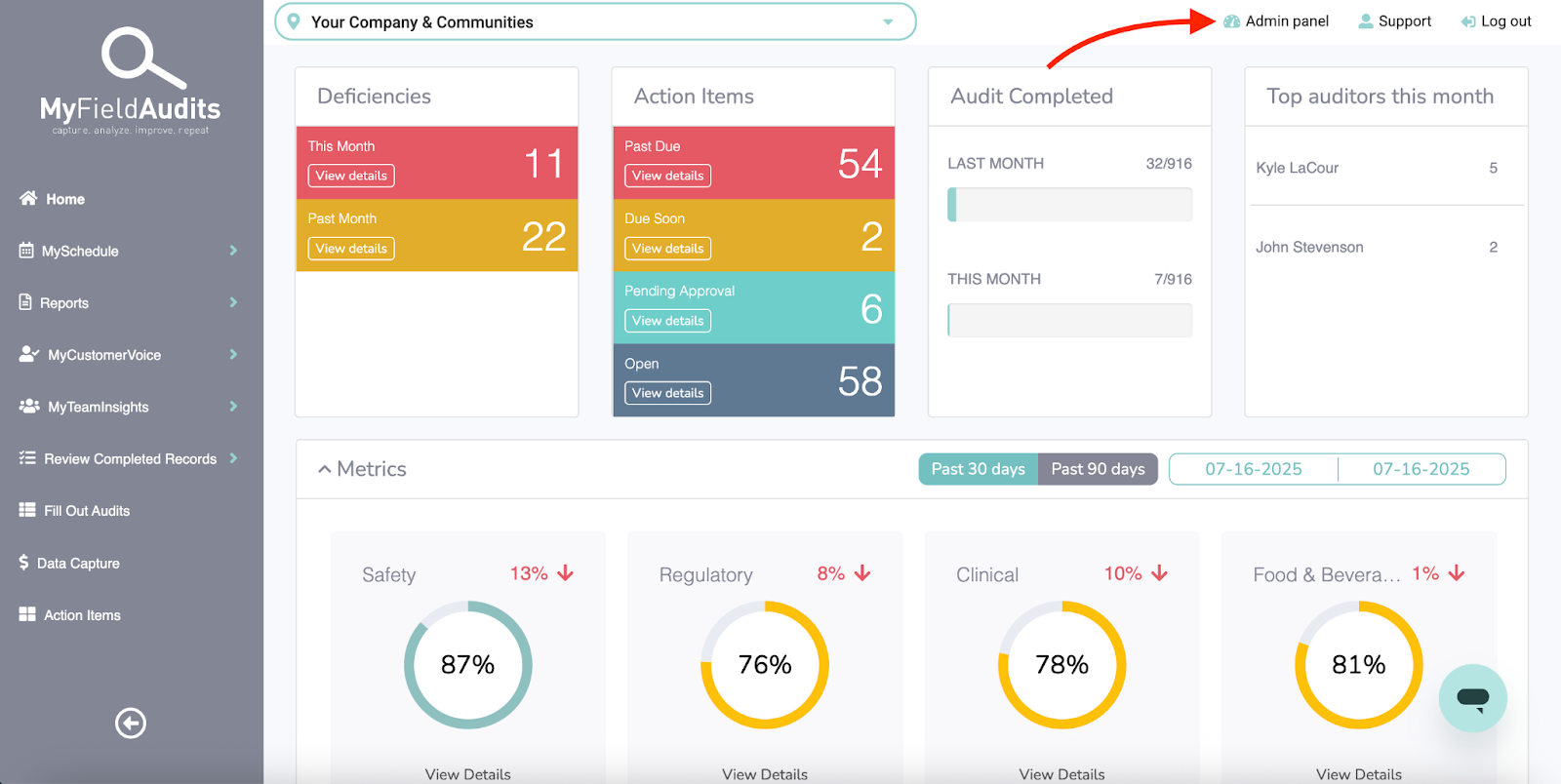
Step 1: Open the Admin Panel
From your main dashboard, click the Admin Panel in the top-right corner.
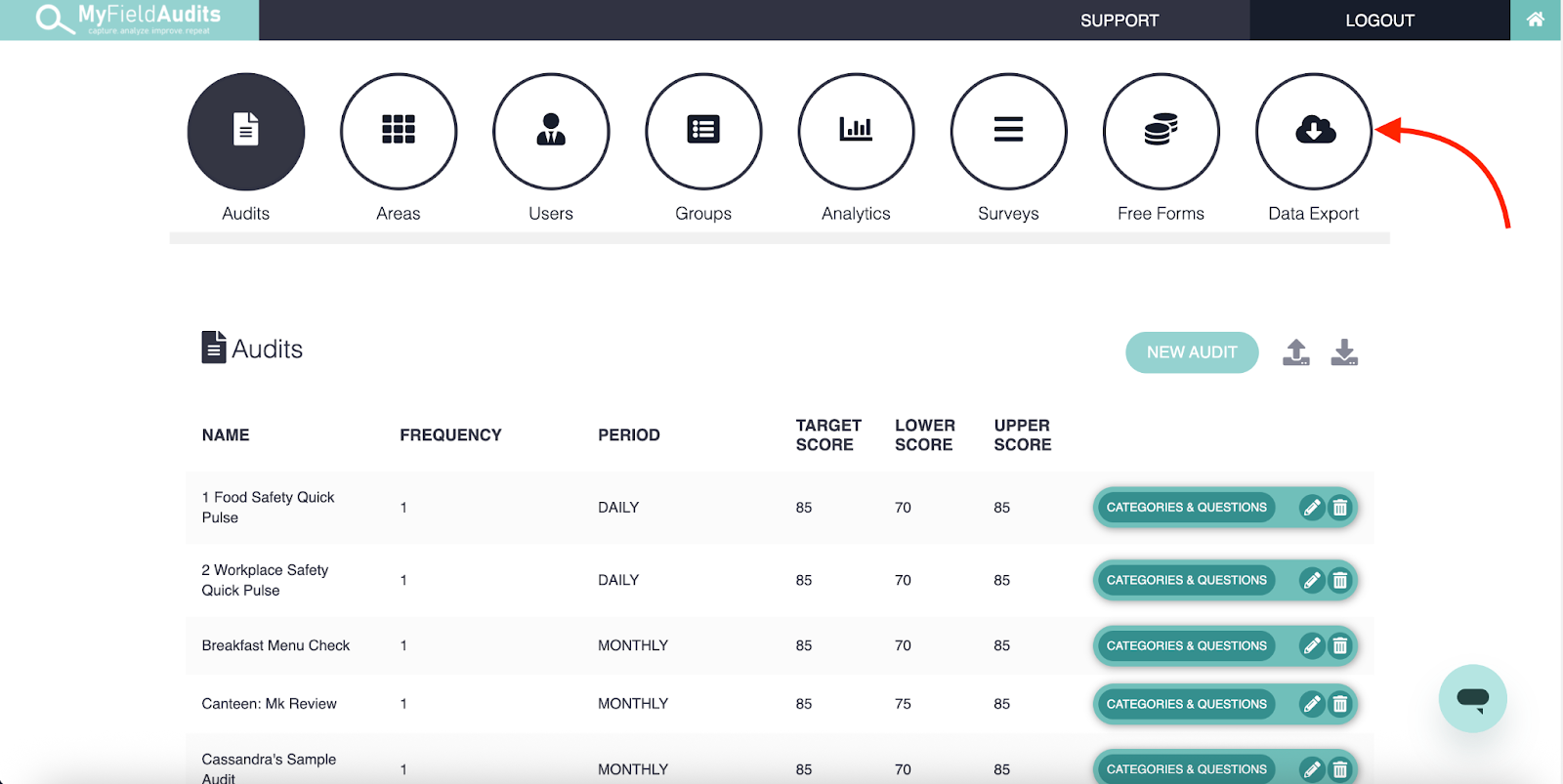
Step 2: Go to the Data Export Tool
In the Admin Panel, click on the Data Export icon at the top of the screen.
Step 3: Choose the Type of Data to Export
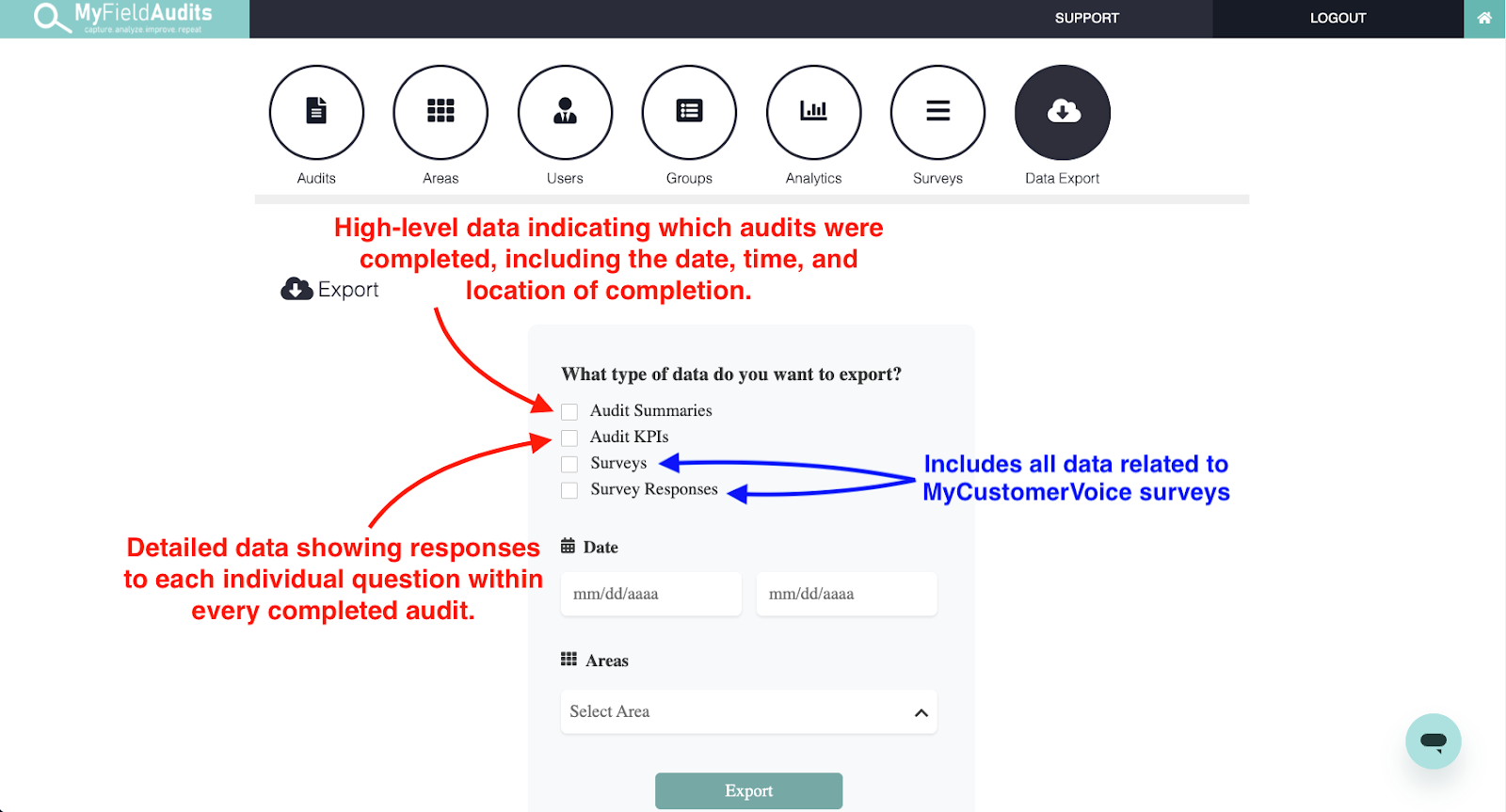
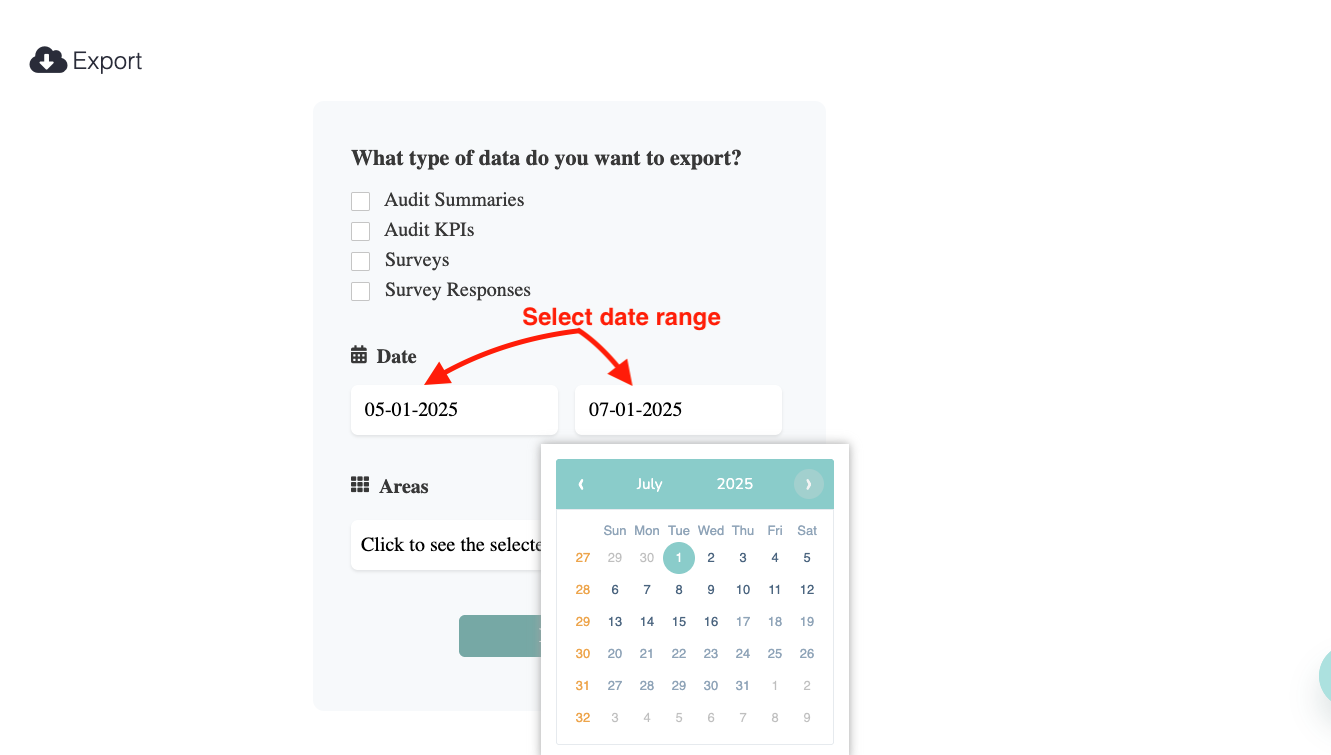
You can select one or more of the following:
- Audit Summaries – High-level data showing which audits were completed, including the date, time, and location.
- Audit KPIs – Detailed data showing how each individual question (KPI) was answered during each audit.
- Surveys + Survey Responses – Includes all data related to MyCustomerVoice surveys.
Step 4: Select the Date Range
Enter the date range for the audits or survey data you want to export. For example, to pull all activity from June, use:
- Start date: 06-01-2025
- End date: 06-30-2025
Step 5: Select Areas
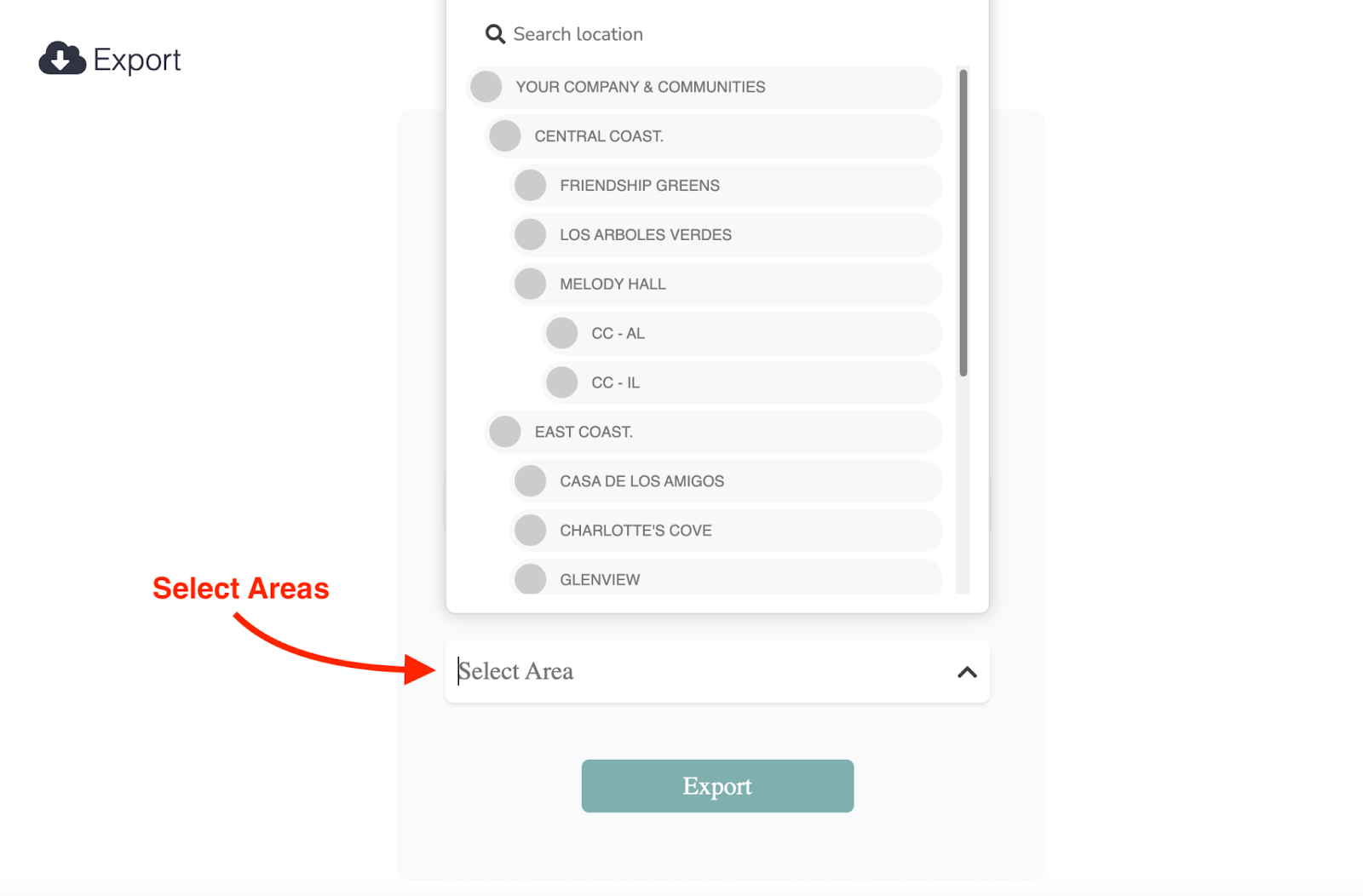
Click into the Select Area dropdown and choose the locations you want to include in the export. You can select one or multiple areas, or search by name.
Step 6: Export the Data
Click the Export button to generate your data files. A .zip file will be downloaded containing CSV files based on your selections.

